Contents - Index - Previous - Next
User Registration Wizard
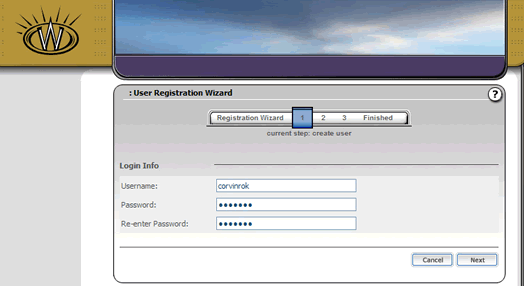
If you agreed to the License agreement, you will arrive at the first screen of the User Registration Wizard, as below:
Step 1. Login Info
Fill in your desired user name and password. Your user ID must be unique to you only. The system will force you to enter the password twice to verify. Click the "Next" button to continue.
Step 2. Personal Info
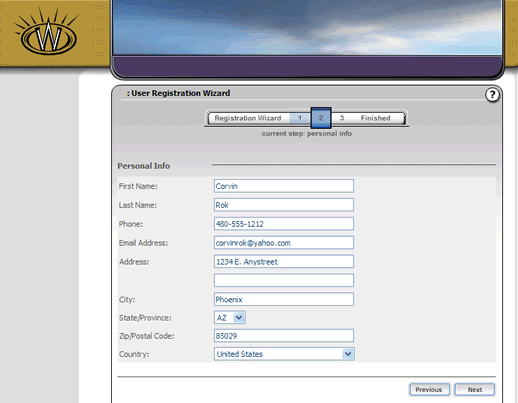
On this step, please fill in your name, phone number and address related to your account. Click the "Next" button to continue.
Step 3. Review
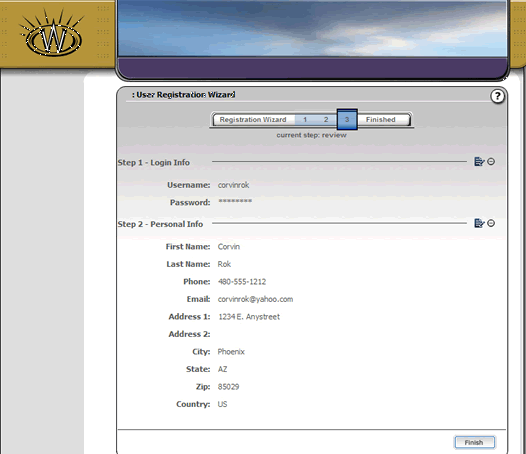
The third step of the User Registration Wizard allows you to review your information. If you wish to edit any of the information, you may select the edit icons at the top right of the information section you wish to edit. Alternatively, you can select the step you wish to edit on the blue wizard bar at the top of the screen. Either way will allow you to navigate throughout the wizard to complete your edits.
Once you are satisfied with the information you have entered, you can complete the User Registration Wizard by clicking the "Finish" button.
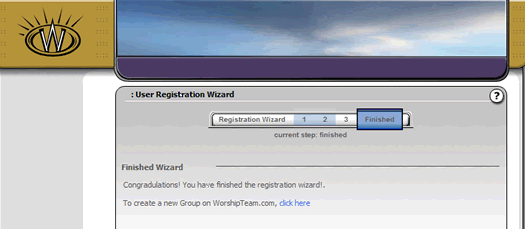
This final step confirms your completion of the User Registration Wizard.
At this point, you should now begin the process of Group Setup. by following the link on this screen above that says "To create a new Group on WorshipTeam.com, click here".