Contents - Index - Previous - Next
Sets - Viewing Sets
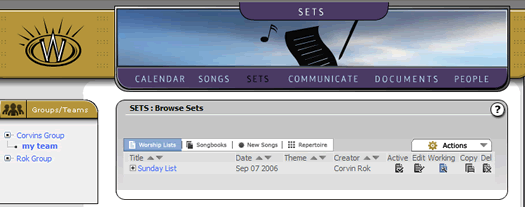
On returning to the main Sets area, you will note that your set is now listed with an additional "+" symbol in front of the set name/title. This is another expand (or tree) control, much like the communicate area. This should appear as follows:
If you select this + symbol, you will see that it now expands the set to allow you to see the songs that are a part of the set. Note the example screen shot below.
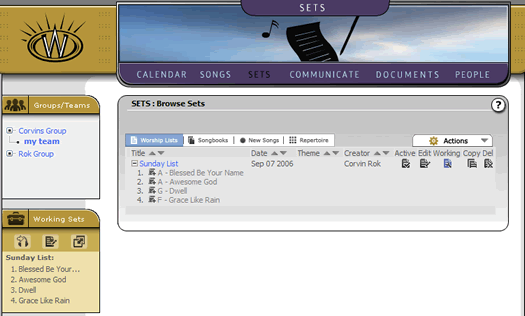
This control becomes very helpful once you have multiple sets in your history and are browsing through your archives looking for songs you have used in the past, and in what situations and sets you have used them. You will note that songs in this setting also have "Add to set icons" themselves. This might seem superfluous, unless you are a seasoned worship leader, who remembers the number of times you have browsed old set lists looking for a specific song that you used. In that case, you can simply browse your old sets, find the song you used, and click the "Add song to Set" icon to add the song from your old set, to your new set. In any case, this is all getting too detailed for our casual tutorial. What we need to do now is take a quick look at how you can go to the "practice pad" where you can hear and see your set list. Click here to continue this tutorial.