Contents - Index - Previous - Next
Calendar - Viewing Events
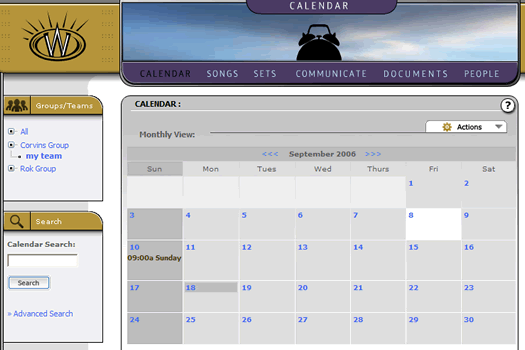
Viewing events in Worshipteam.com calendar is very simple. First, return to the main calendar view by clicking on the "Calendar" main menu selection. When you land there, you should see the calendar similar to this:
You will note that the event you just created should now be on the calendar (assuming that you set the date of the event to something that is within the current month). In our example above, you can see the even we created was for Sunday at 9am. On your own calendar, simply click the mouse on the event as it appears in your calendar.
You should see a pop-up mini-window appear that looks similar to this:
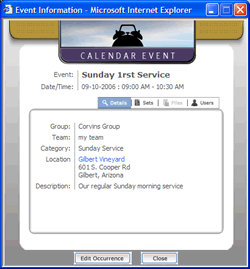
This is a calendar event window. It gives you a quick synopsis of your new event. Note that there are four tabs in the window. The current tab exposes various details information for you to view. The one link available in that tab is the location name. If you click on the location name it will link you to a map of the location.
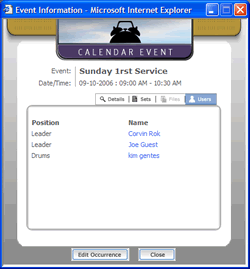
For our tutorial, select the "Users" tab. You will now see the members that were included in your event. This allows you to see who else is involved in this event as follows:
Finally, as we near concluding our tour of events, select the "Sets" tab and continue with the tutorial in the Events in Sets.