Contents - Index - Previous - Next
Group Wizard - Step 2
Add Users
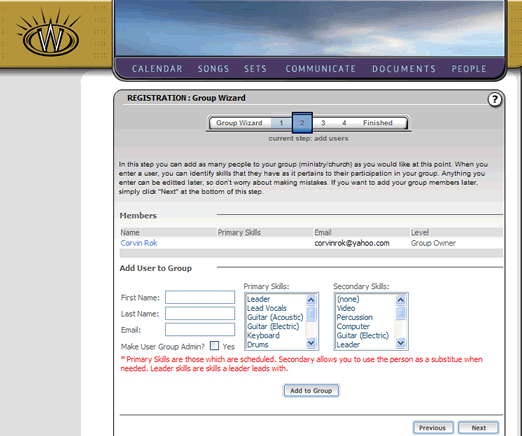
On this step, you can add users to your group. In this step you can add as many people to your group (ministry/church) as you would like at this point. When you enter a user, you can identify skills that they have as it pertains to their participation in your group. Anything you enter can be edited later, so don't worry about making mistakes. If you want to add your group members later, simply click "Next" at the bottom of this step.
You will note that you already have yourself listed as a user. You can select yourself by clicking on your name. This will fill out the user information in the form below your name. Then you can assign any skills you use in the group to yourself. In this case, the user "Corvin Rok" has selected his primary skill as a "Leader" and selected (from the "Leads with" box) skills of Lead Vocals and Keyboard. Because you are the group owner, you will note that your user information details show that the "Group Admin" checkbox is selected. This appears as follows:
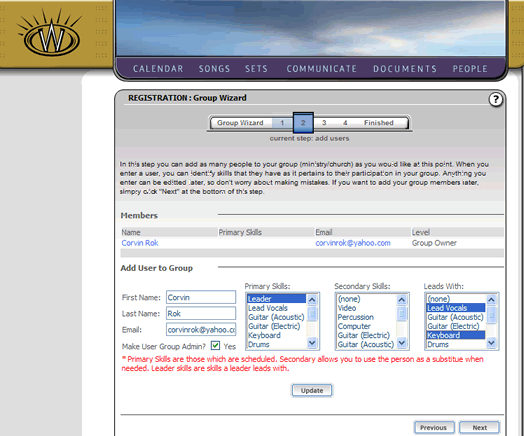
After entering your skills, you can update your information by selecting the "Update" button. You will then see the listing of your user at the top has updated information.
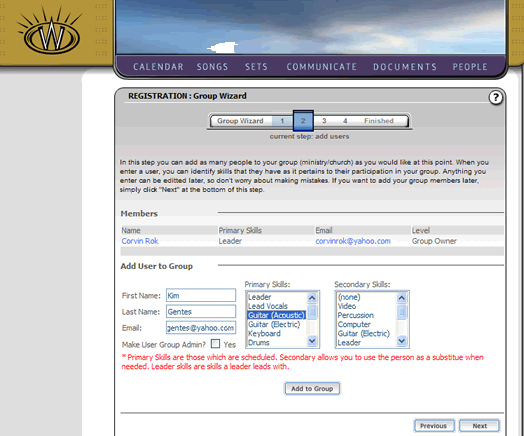
You can also add other users here. To do so, simply enter their first and last name, and email in the appropriate boxes. Select a primary skill, and secondary skill if you wish. Click the "Add to Group" button to add them to your group.
You can repeat that process for as many users as your account level allows, as shown the following image, where three users are now in the group.
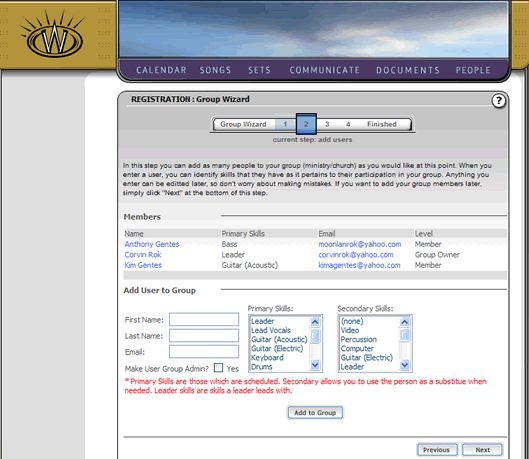
Click the "Next" button to continue. This will take you to Step 3.