Contents - Index - Previous - Next
Group Wizard - Step 3
Add Teams
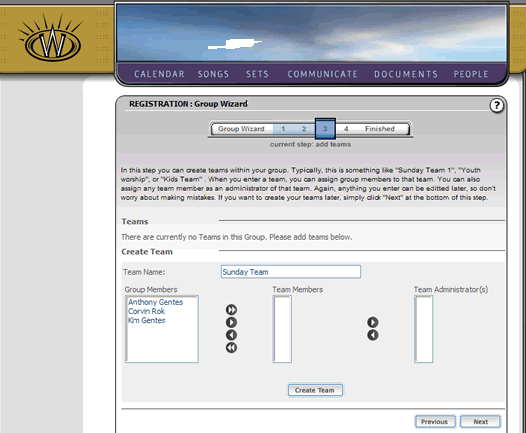
The third step of the Group Wizard allows you to create teams in your group. You can also assign members to those teams.
To create a team, simply type the name of the team in the "Team Name" box.
To assign group members to a team, select the people listed in the "Group Members" list box, and use the single right arrow to move those people into the Team Members box. By selecting people in those list boxes, you can move them with the arrow buttons from the general group to the Team Members list boxes. The double arrows will grab all listed members and move them the direction specified.
You can also make any team member a team administrator by moving them to the right-most box. Group or team administrators can perform extra functions on the WorshipTeam.com service, such as scheduling teams, making worship lists/sets, assigning people to teams, adding new or making new arrangements of songs, posting documents to the document share area and other functions. Normal team members have access to all of this same data, but have some restrictions on creating or editing such information.
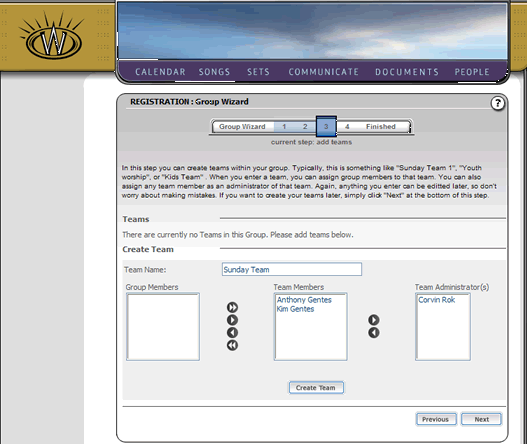
Once you are satisfied with the information you have entered for your team, you can create your team by selecting the "Create Team" button.
You team and its members will then be listed at the top of the screen, as follows:
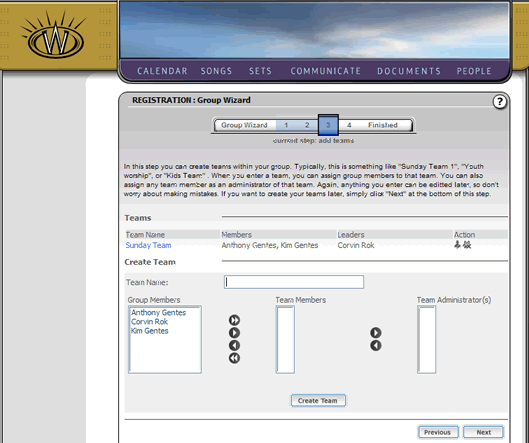
You can repeat that process for as many teams as you would like. There are no limits to the number of teams you can create within a group, though you are still limited to the number of total users/members that your group account allows for your Account Level.
Once you have created as many teams as you would like, click the "Next" button to continue. This will take you to Step 4.