Contents - Index - Previous - Next
Step 3
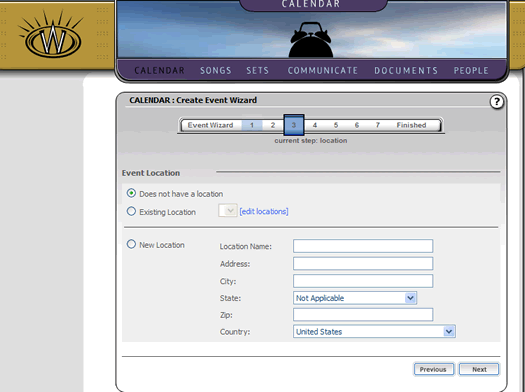
The next step you come to in the event wizard is the location information. This will appear as follows:
Since this is your first time using the wizard, enter the information for your church location (in our mock event) and be sure to select "New Location" radio button on the left side of the screen. You screen should end up looking something like this:
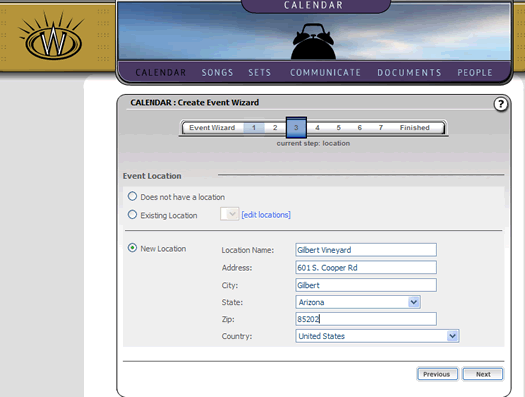
Having entered that location once, it is now stored in your workspace. The next time you use the event wizard that location will be available as a preset value you can select. You will not have to re-enter that information again.
Click the "Next" button to continue.